 Twitter
 Facebook
 RSS
RSSUsed for each page load, the cache of your web browser is the default on your primary hard drive or SSD which can use because of the large number of reads / writes. If you have more than 2 GB of memory, you can place the cache in the RAM of your PC. Loading items from the cache will be accelerated and you deal falsely, the higher your SSD.
1. In Firefox, type the command about: config in the address bar. Confirm with Entry.

2. Click I'll be careful, I promise!.

3. In the field Filter, Enter browser.cache.

4. Double click the option browser.cache.disk.enable.

5. Its value increases to false.

6. Then check that the option browser.cache.memory.enable is to true. If it does not, double click it.

7. Then click the right mouse button in an empty space of the window and click News then Integer.

8. Name the option . Click OK.
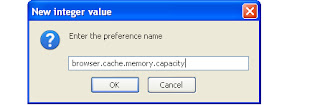
9. Then enter 75000 to assign 75 MB of memory to the cache. Confirm with OK and restart Firefox to apply the change.

10. Note that the cache is now in memory, it will be erased each time you restart your computer.
1. In Firefox, type the command about: config in the address bar. Confirm with Entry.
2. Click I'll be careful, I promise!.

3. In the field Filter, Enter browser.cache.

4. Double click the option browser.cache.disk.enable.

5. Its value increases to false.

6. Then check that the option browser.cache.memory.enable is to true. If it does not, double click it.

7. Then click the right mouse button in an empty space of the window and click News then Integer.
8. Name the option . Click OK.

9. Then enter 75000 to assign 75 MB of memory to the cache. Confirm with OK and restart Firefox to apply the change.

10. Note that the cache is now in memory, it will be erased each time you restart your computer.
Read More - Move your browser cache memory - Firefox

